
When using cloud storage services like OneDrive, your files are inevitably placed inside a base directory like C:\Users\username\OneDrive. Normally, this isn’t an issue. However, if you are managing deep folder structures for complex experimental data or development projects, you will eventually encounter errors such as “The file name(s) would be too long for the destination folder” or “Destination Path Too Long”.

This post focuses on shortening the path used to access a folder with subst. It does not show that all Windows or application path limits have been removed.
The first method is modifying the Windows Registry to enable long paths. However, forcing the OS to ignore this limit might cause unexpected issues with legacy applications. More importantly, this method requires Administrator privileges, making it impossible to use on restricted PCs at corporate offices, government facilities, or university labs.
The second method discussed here is using the subst command. This command maps a long, repetitive base directory to a virtual drive letter, effectively shortening the overall path length. The steps below describe the subst setup used in this post. They do not establish that it works on every PC or in every application.
How to Fix the “File Name Too Long” Error Using the subst Command
This method preserves your actual folder structure while drastically reducing the path length you interact with. We will map the repetitive front part of the path to a virtual drive (like Z: or Y:).
- Press
Win + Ron your keyboard, typecmd, and press Enter to open the Command Prompt.
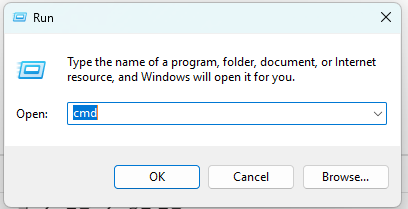
Before using Z:, run subst to inspect existing mappings and check “This PC” for other drives using that letter. If Z: is in use, choose an unused letter and replace Z: throughout the commands and batch file. To remove a mapping later, run subst Z: /d only after checking that it is the mapping you intend to remove.
- Enter the following command to map your long path to a virtual drive:
subst Z: "Your target path"
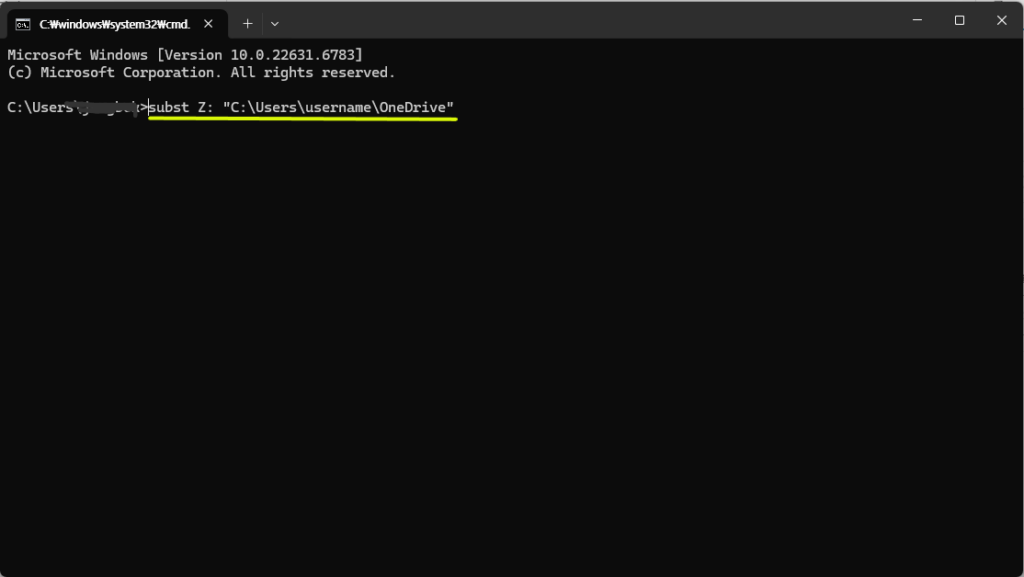
For example, if you type:subst Z: "C:\Users\username\OneDrive"
The entire C:\Users\username\OneDrive section is now replaced by the much shorter Z:\.
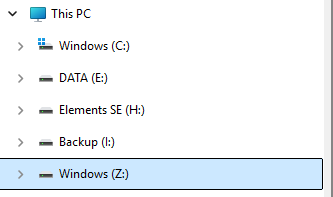
Now, open File Explorer. You will see a newly created Z: drive under “This PC”. Use the shortened path to check whether the file operation you need now works. This mapping does not establish that every path limit in Windows or your applications has been bypassed.
Bonus Tip: How to Keep the Virtual Drive After a Reboot
You will notice that the virtual drive created by the subst command disappears when you restart your PC. To solve this, we can create a simple batch script to automatically mount the drive every time Windows boots.
1. Create a Batch (.bat) File
Open Notepad and paste the following commands:
@echo off
subst
subst | findstr /i /b /l /c:"Z:\:" >nul
if not errorlevel 1 goto confirm
if exist Z:\ goto occupied
goto mount

:confirm
choice /c YN /n /t 15 /d N /m "Remove the listed SUBST mapping for Z: and replace it? [Y/N] "
if errorlevel 2 exit /b 0
if not errorlevel 1 exit /b 1
subst Z: /d
if errorlevel 1 exit /b 1

:mount
subst Z: "C:\Users\username\OneDrive"
exit /b %errorlevel%

:occupied
echo Z: is already in use. Choose another drive letter.
exit /b 1
Replace the target path with your actual folder. The script lists existing subst mappings. If Z: is a subst mapping, it asks before removing it; press Y only after confirming the listed target is the one you intend to replace. N or no response for 15 seconds leaves it unchanged and exits. If Z: is another accessible drive, the script exits. A failed mount is not treated as a successful setup. This replacement script has not yet been tested on the author’s Windows PC.
For reference, I actually use a startup batch file that recreates the substitute path automatically on every restart. This confirmation-based script, however, is a safer rewrite of that setup presented as an example; I have not run this exact version on my own PC.
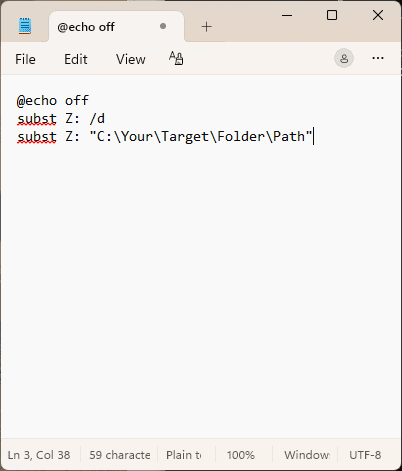
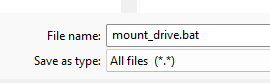
Save the file and name it something like mount_drive.bat. Make sure you select “All Files” in the Save dialog so it doesn’t save as a .txt file. This creates an executable batch file.
2. Add to Windows Startup Folder
Now, let’s register this script to run automatically at boot.
- Press
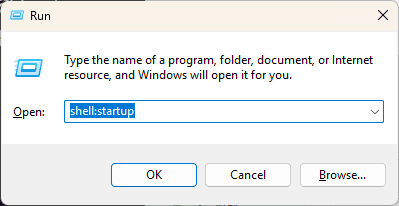
Win + Rto open the Run dialog. - Type
shell:startupand press Enter. This will open the Windows Startup folder. - Move the
mount_drive.batfile you created into this folder.
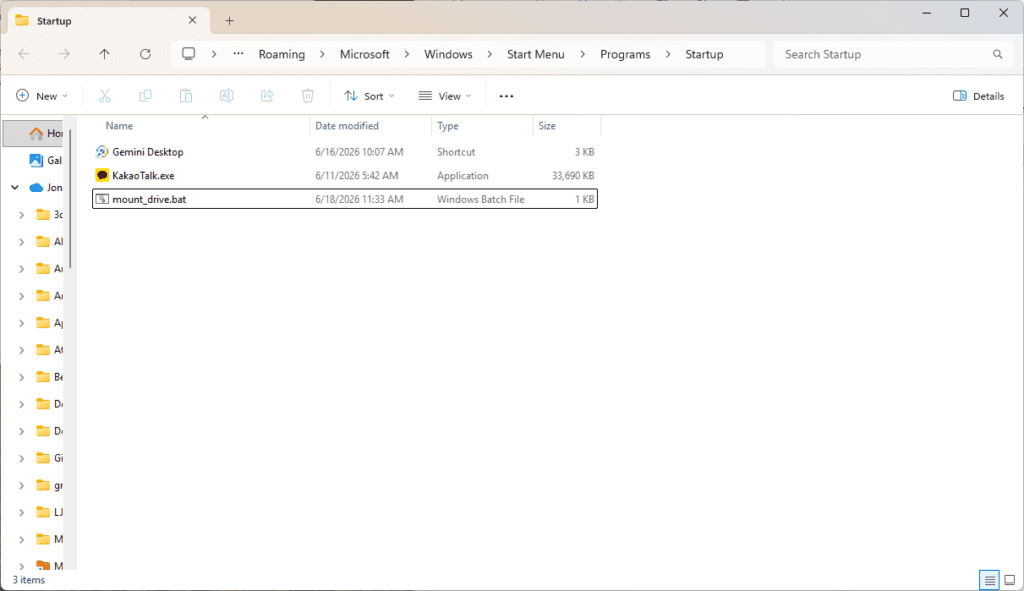
That’s it! At sign-in, the batch file attempts to create the mapping. If Z: already has a subst mapping, it requires confirmation before replacing it. Check that the mapping and the file operations you need work in your environment; the script does not remove all path length limits.
Leave a Reply