
This post records how I set a 75% charge limit with AlDente and checked background apps in Activity Monitor. It does not establish that battery lifespan doubled or that swelling was prevented.
For the built-in charge limit described in macOS 26.4, start with the built-in charge limit guide (Korean). That post covers the 80–100% setting; this post covers my 75% AlDente setup and checking apps while idle.
Setting a Charge Limit with AlDente
The built-in charge limit and AlDente are separate options. Here I describe the steps I used to set 75% in AlDente; I have not verified the hardware-level power behavior or compared long-term battery health between the two options.
1. Downloading AlDente
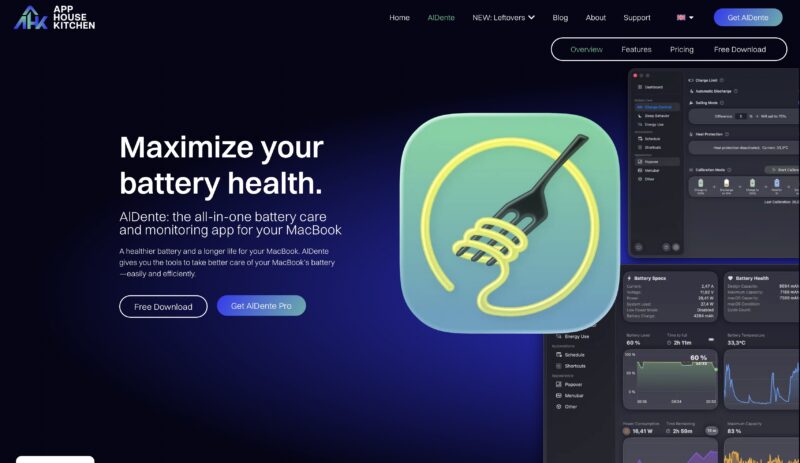
Go to AlDente’s official website and click the free download at the top right. Agree to the terms, click download, allow the download, and the pkg file will download. There’s a Pro version, but the free version is more than enough for setting a charge limit.
2. Installing AlDente
I ran the downloaded pkg file and clicked Continue to install AlDente. It’s only 30 MB, so not large.


3. Running AlDente and Setting the Charge Limit
When you run AlDente, it asks whether to take a survey or buy the Pro version — you can just skip through. As you continue, you’ll see launch-related settings; I turned on the launch-at-login option and turned off everything else.


Click the AlDente icon in the top menu bar to set the charge limit. I set mine to 75%. This is my selected setting, not a verified optimum or evidence of longer battery lifespan.

Checking Background Apps with Activity Monitor
If your MacBook’s battery drains a lot even when idle, there’s a good chance apps running in the background are continuously consuming battery. To check background battery usage, press Cmd + Space to open Spotlight and launch Activity Monitor.
Use Activity Monitor’s “12 h power” column as a starting point for checking apps. If an unused app stands out, compare battery drain with and without it running before attributing the drain to that app.

The “Preventing Sleep” column is another item to check, but a “yes” entry alone does not establish the cause of battery drain while idle. Safari showed “yes” while I was playing music in the background. I also noted the Windows App’s background remote connection. The battery difference before and after quitting these apps still needs to be measured under the same conditions.
Other Battery Life Extension Tips
The observations in this post cover setting a charge limit and checking apps. They do not verify the power path while plugged in, long-term battery lifespan, or prevention of swelling.
Leave a Reply