I’d like to share my experience merging images in ImageJ for analysis after bacterial fluorescence staining. I had obtained Bright field and Fluorescence channel images from the microscope and needed to analyze whether bacteria were fluorescently stained within the window. I wanted to use ImageJ’s cell counting feature, and to check bacteria at exactly the same positions while overlaying the images, I first had to merge the Bright field and Fluorescence images into one. Based on this experience, here are two ways to merge two images into a single window in ImageJ!
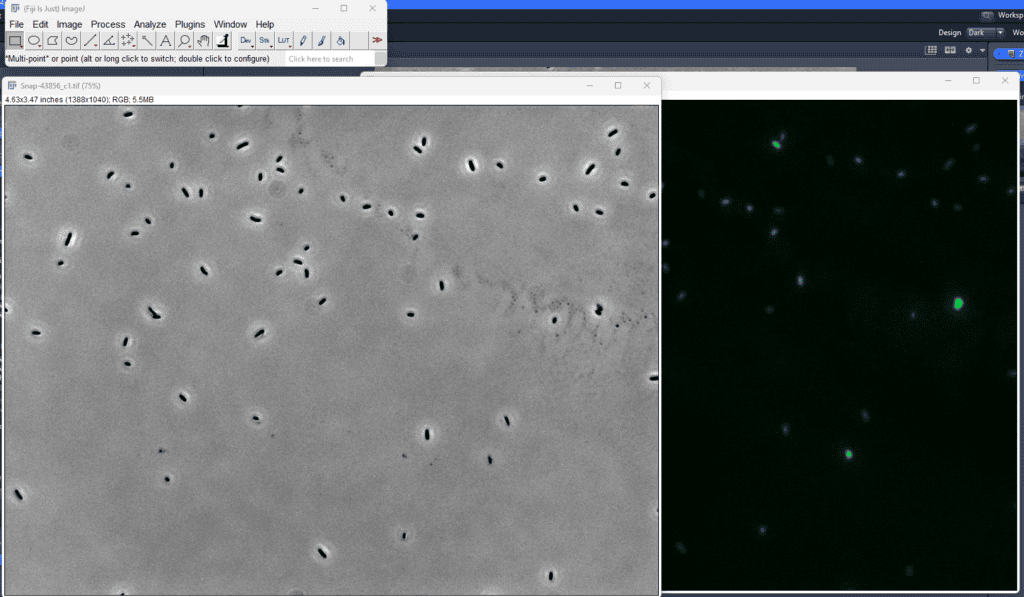
Merging Images in ImageJ, Method 1: Stack-Type Merging (Images to Stack)
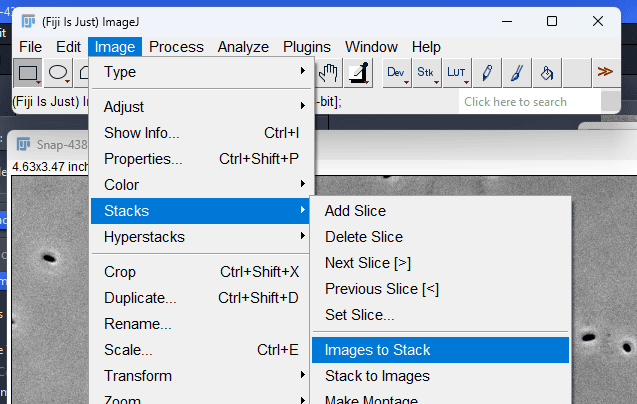
Merging into a stack lets you hold both images in a single window and analyze images at the same position by moving back and forth with the horizontal slider. First, open all the images you want to merge, then click [Image – Stacks – Images to Stack] in the top menu.
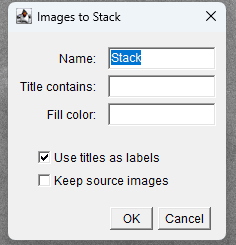
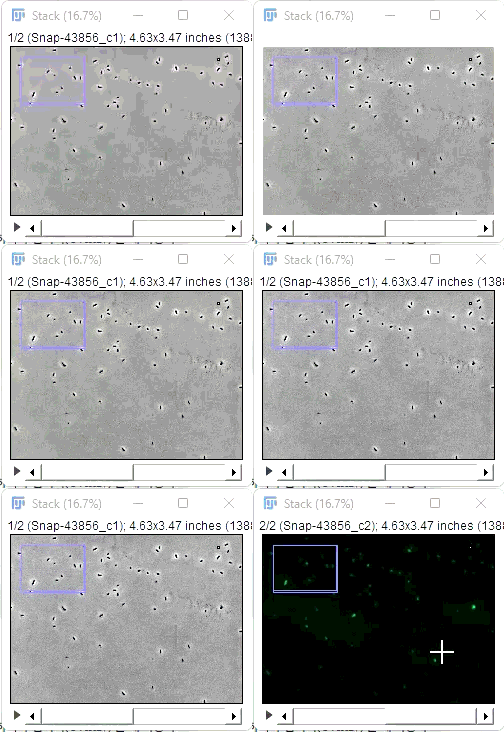
In the window that appears, enter a stack name and click OK, and the two images will be merged into one window as shown in the photo on the lower right. You can switch between images by moving the horizontal slider or scrolling the mouse wheel. This method makes it very easy to compare whether bacteria are fluorescent.
Merging Images in ImageJ, Method 2: Placing Them Side by Side / Top and Bottom in One View (Combine / Montage)
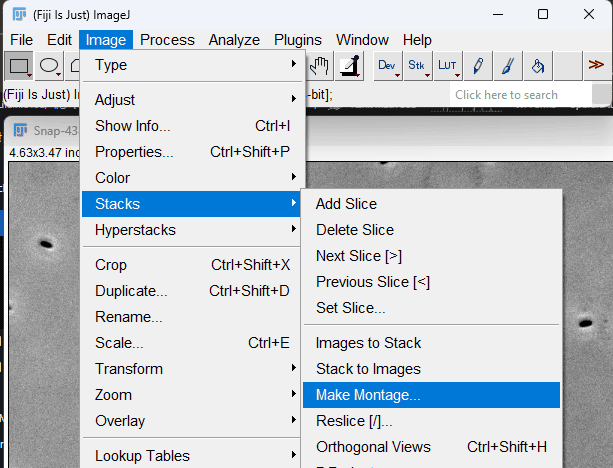
This method merges the images into a stack as described above, then arranges them side by side so all images are visible at once. With the two stacked images open, click [Image – Stacks – Make Montage] in the top menu.
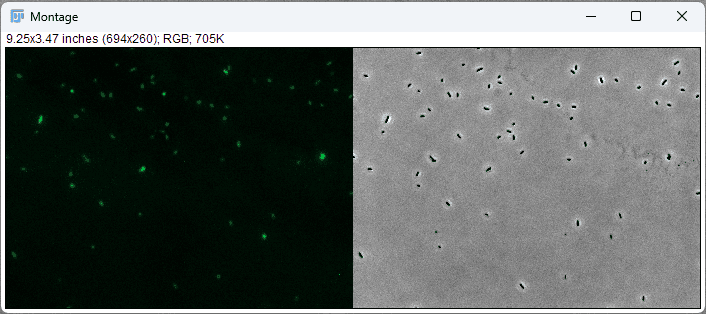
Running Make Montage creates a montage where the two images — previously a horizontal-slider stack — are shown simultaneously in one window. Merging images this way makes it easy to compare the overall shapes of the left and right images or to compare a single bacterium back and forth. I also think it’s suitable for creating images to attach to a paper.
Conclusion
We’ve looked at two ways to merge images in ImageJ. I used both methods for analyzing bacterial fluorescence staining results, and personally, I found method 1 more convenient since I could flip through the images and compare bacteria one by one. On the other hand, I thought method 2 was better suited for paper figures that need to show all channel images.
Leave a Reply